
Jump to a step
How to Create and Set Up a Google Business Profile
Check eligibility, find an existing listing and follow the right setup path—without creating avoidable duplicates.
Not affiliated with or endorsed by Google. No guaranteed verification or search position.

- 6Practical steps
- 3Questions to find your path
- 8Official Google help pages
- $0To add or claim, per Google
Three questions. One right path.
Pick the answers that match your business. The result is written from the Google help pages cited below; the walkthrough then highlights the steps you need.
Search Maps once more, then add the business through Google’s own flow.
Is this the right guide for you?
Use this guide if
- You own the business or are authorized to manage it.
- You need to add, claim or set up an eligible local business profile.
Check another path if
- The business is online-only or a lead-generation operation: check eligibility first.
- Your task is Google Ads advertiser verification; that is a separate process.
What to do, in order
Confirm the business serves customers in person, then search Google Maps before adding anything. If a listing exists, claim it or request access instead of creating a duplicate.
Enter the real-world name, category, address or service area and hours, complete the verification Google offers, then keep the profile accurate. Adding or claiming is free, according to Google.
- A Google Account you will keep using
- Real business details: name, category, phone, hours
- Access to your business for the verification step
Storefront, service-area, hybrid—or not eligible?
Your business type decides whether the address is shown, whether you set a service area and what a verification video has to show. Pick the row that matches how customers actually meet you.
| Business type | How customers are served | Address on the profile | Example | What changes in setup |
|---|---|---|---|---|
| Storefront | Customers come to a staffed location with permanent signage during stated hours. | Shown | A bakery or a hair salon | Use the exact street address. A video check shows signage with the profile’s name. |
| Service-area | You travel or deliver to customers and don’t serve them at your address. | Hidden; set a service area instead | A plumber or a locksmith | Hide the address. Google says a service area generally shouldn’t extend beyond about 2 hours of driving from your base. |
| Hybrid | You serve customers at your location and also visit or deliver to them. | Shown, plus a service area | A dine-in restaurant that also delivers | Show the address only if the location is staffed and receives customers during stated hours. |
| Not eligible | No in-person contact with customers during stated hours. | No profile | Online-only brands, lead-generation agents, rental or for-sale properties | Don’t create a profile. A website or a mailing address alone does not make a business eligible. |
Summarized from Google’s eligibility rules, address and service-area guidelines and video verification requirements. Business Profile policies and eligibility ↗ Guidelines for representing your business ↗ Verify your business with a video recording ↗
The details Google expects, field by field
Have these ready before you open the add-business flow. Each field should describe the business the way customers meet it in the real world.
| Field | What Google expects | Avoid |
|---|---|---|
| Business name | The name used consistently on your sign, website and stationery. | Taglines, keywords, city names, store codes, phone numbers or URLs added to the name. |
| Category | As few categories as possible; the most specific one that completes “This business IS a…”. | Categories used as keywords, or for a business located inside yours. |
| Address or service area | The precise physical address, with any suite in line 2; or a hidden address plus a service area. | P.O. boxes, remote mailboxes and virtual offices where the business doesn’t operate. |
| Hours | Regular customer-facing hours, plus special hours for holidays and closures. | Listing hours for appointment-only or varied-schedule services that shouldn’t show them. |
| Phone | A local number for the location, under the direct control of the business. | Premium-rate numbers, call-forwarding numbers or another company’s referral line. |
| Website | A page that represents this business location. | Links that redirect people elsewhere, including to social media pages. |
Based on Google’s guidelines for representing your business. Guidelines for representing your business ↗
6 practical steps. One clear next action.
Read the key points here. Open the extra detail only when you need it.
- Step 01
Check whether your business qualifies
- Your business generally needs in-person contact with customers during its stated hours: at a customer-facing location or by traveling to customers.
- Google lists online-only businesses, lead-generation agents or companies, and rental or for-sale properties as ineligible. A website or mailing address alone does not establish eligibility.
Business Profile policies and eligibility ↗Details & things to check
Check the rules for your particular business model before entering an address. An ongoing service, class or meeting at a location you don’t own or have authority to represent is also ineligible. This guide is for managing a real eligible business, not creating a listing for an editorial directory, affiliate site or a location you are not authorized to represent.

- Step 02
Find the business before adding one
- Search Google Maps for the business name and city. Check the address and identity, not just a similar name.
- If an unverified profile exists, select Claim this business, then Manage now. If none exists, start at business.google.com/add and select Add your business to Google.
Add or claim your Business Profile ↗Details & things to check
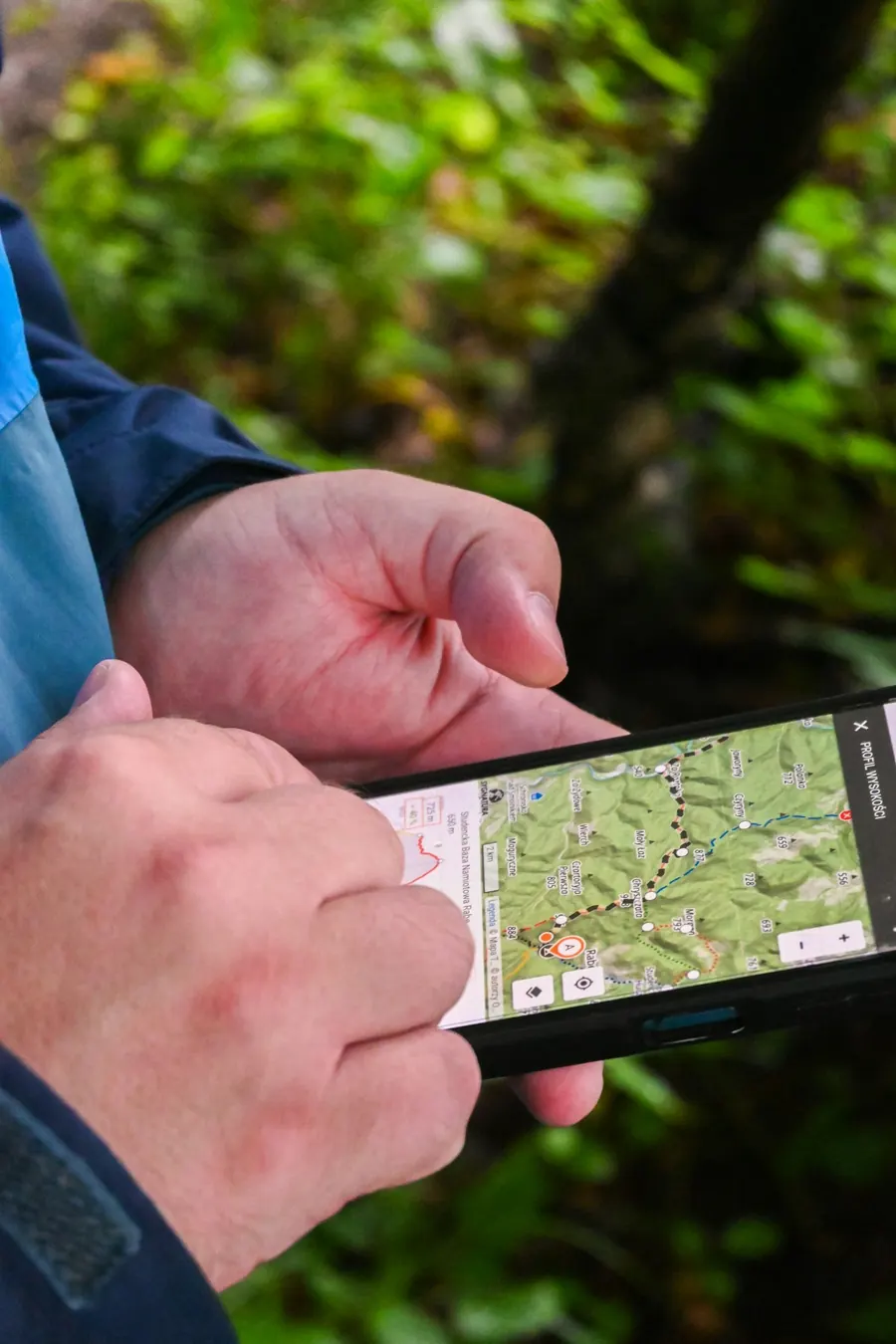
In the Google Maps app, open the business, tap About, then Claim this business. If the result is not your business, choose I own or manage another business. If the profile has already been verified by someone else, claiming isn’t offered: request ownership instead. You need a Google Account; interface labels can differ between devices.
- Step 03
If someone else owns it, request access
- For an eligible storefront or hybrid business, select the existing business in Google’s add-business flow and use Request Access when offered.
- For a service-area business without a customer-facing shop, Google directs ownership-transfer requests to Business Profile support.
Request ownership of a Business Profile ↗Go deeper: What to Do When Someone Else Owns Your Business ProfileDetails & things to check
The current owner has 3 days to respond. If there is no response, a claiming option may become available, but Google says this is not always offered. Follow the confirmation email and Google’s ownership guidance instead of creating a duplicate listing to bypass an access problem.
- Step 04
Enter accurate business information
- Use the name customers recognize in the real world. Put hours, category and location information in their own fields rather than adding promotional keywords to the name.
- Choose categories that describe the core business. Use a phone number and website belonging to the actual business location.
- Use a real eligible address. A service-area business that does not receive customers at its address should hide that address from customers.
Guidelines for representing your business ↗Go deeper: Get Your Google Business Profile Details RightDetails & things to check
Google does not accept P.O. boxes or a rented virtual mailing office where the business does not operate; a profile set to a P.O. box can be suspended. A storefront and a business traveling to customers have different address-display needs. Prepare the correct name, category, contact information and hours before submitting; do not borrow another company’s address or referral phone number.

- Step 05
Complete the verification Google offers
- Google determines the available methods from things like business type, public information, region and hours; the method can’t be changed. Some businesses need more than one method.
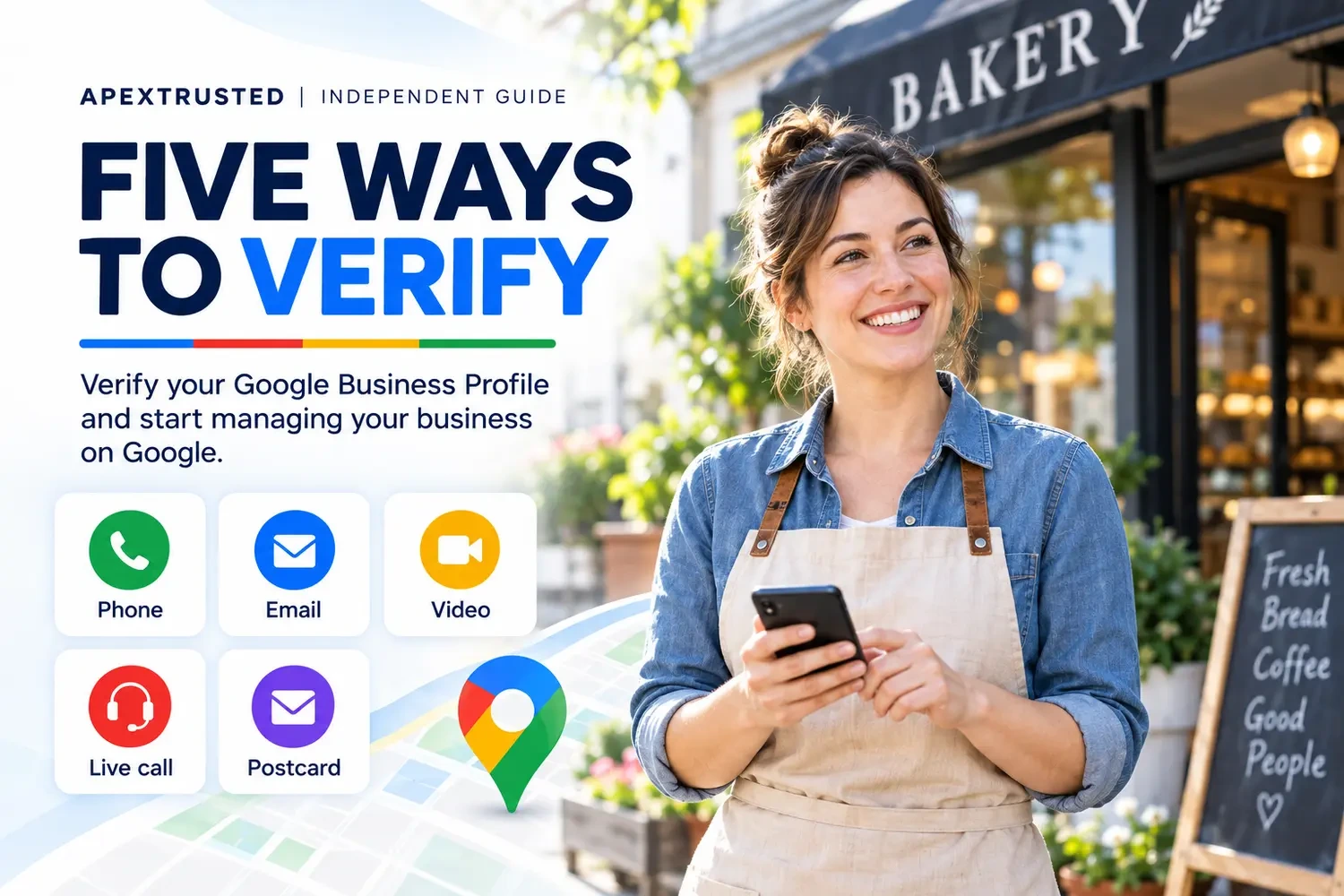
- Methods can include phone or text, email, video recording, live video call and a postcard. Keep codes private: Google says it will never ask you for one.
Verify your business on Google ↗Verify your business with a video recording ↗Go deeper: How to Verify Your Google Business ProfileDetails & things to check
If Google requests a video, record it live in one continuous take of at least 30 seconds from a mobile device, showing the location, the business itself and proof that you manage it. Do not manufacture evidence or assume another business’s method will apply to yours. Use Google support if the offered process cannot be completed.
- Step 06
Check what customers will see
- Review the name, address or service area, contact details and hours. Keep information accurate as your business changes, including special hours for holidays.
- Add relevant photos and reply to reviews once you are verified. Google says complete, accurate and verified profiles are more likely to show up in local results.
Local ranking guidance ↗Manage customer reviews ↗Go deeper: How Google Decides Which Local Businesses to ShowDetails & things to check
Treat setup as the start of ongoing maintenance. Verification is not a promise of a top Maps position: Google says local results are mainly based on relevance, distance and prominence, and that there is no way to request or pay for a better local ranking.

What happens next, and how long Google says it takes
Timing comes from Google’s help pages and can vary. Use it to plan, not as a promise.
| Stage | What Google says | What you do |
|---|---|---|
| Verification review | Review takes up to 5 business days, with rare exceptions taking longer. | Watch for a confirmation email. If Get verified appears again, try again or use another offered method. |
| Postcard code | A 5-digit code typically arrives within 14 days and expires after 30 days. | Don’t edit the name, address or category while you wait, or the code won’t work. |
| Ownership request | The current owner is notified and has 3 days to respond. | Track the request from the confirmation email; a claim option may appear after 3 days, but not always. |
| Later edits | Google may reject significant changes to the business name or category. | If a different business now operates at the address, mark the old profile permanently closed instead of renaming it. |
| Long-term access | Owners who don’t use the profile for long periods may lose access after a warning. | Keep the profile under an account the business controls, and check it regularly. |
Compiled from Google’s verification, ownership and Business Profile policy pages. Verify your business on Google ↗ Request ownership of a Business Profile ↗ Business Profile policies and eligibility ↗
What to avoid
Common mistakes
- Creating another profile instead of resolving ownership of the existing one.
- Using a virtual address, keyword-filled name or a phone number that refers customers to a different business.
- Editing the name, address or category while waiting for a postcard code.
- Assuming verification options, completion times or search positions are guaranteed.
Before you continue
Is creating or claiming a profile free?+
Google says you can add or claim your business at no charge. This independent guide does not sell verification or act as Google support.
Can I use this guide for an online-only affiliate website?+
No. Online-only businesses and lead-generation agents or companies are not eligible, and a domain or mailing address does not make them eligible. Review Google’s eligibility rules for the actual business you intend to represent.
I work from home and visit customers. Do I show my home address?+
No. A service-area business that doesn’t serve customers at its address should hide the address and set a service area instead.
Can I use a P.O. box or a virtual office?+
No. Google doesn’t accept P.O. boxes, remote mailboxes or virtual offices where the business doesn’t operate, and a profile set to a P.O. box can be suspended.
Can I create a profile for each of my locations?+
Google allows one profile per location. Separate locations with their own staff can each have a profile; a service-area business should use one profile for its central location with a service area.
What if my business moves?+
For businesses whose physical location is part of the customer experience, such as restaurants, hotels or entertainment venues, Google asks you to mark the old profile permanently closed and create a new one at the new address. If the address was simply wrong, contact Google support.
How long does verification take?+
Google says review takes up to 5 business days, with rare exceptions. A postcard typically arrives within 14 days, and its code expires after 30 days.
Is Business Profile verification the same as Google Ads advertiser verification?+
They are separate tasks. Follow the instructions for the relevant product; this guide covers Business Profile setup, not a Google Ads identity or business-operations review.
Go straight to the source.
We read each Google help page listed below in full on October 29, 2026 and summarized only what those pages state. We did not access or change any business account, and we did not test a particular business’s eligibility, verification or ranking outcome. Screens, methods and timing can vary by business and region.
- Business Profile policies and eligibility
- Add or claim your Business Profile
- Request ownership of a Business Profile
- Guidelines for representing your business
- Verify your business on Google
- Verify your business with a video recording
- Local ranking guidance
- Manage customer reviews
Image credits: Photo by Ali Mkumbwa (Unsplash); Photo by Tim Mossholder (Unsplash); Photo by Sylwia Bartyzel (Unsplash); Photo by Phil Hearing (Unsplash); Photo by Blake Wisz (Unsplash). Illustrations are not Google interface screenshots or real verification evidence.
Corrections and scope
For changes in Google’s instructions, follow the live official source. To flag an error, send this article’s URL and the relevant source through our editorial contact page. Do not send passwords, verification codes or identity documents. This is educational content, not Google support.
More Business Profile guides
How to Verify Your Google Business Profile
Why your verification options differ from another business’s, how each method works, and what to show, avoid and do next so you don’t have to start over.

Get Your Google Business Profile Details Right
What Google allows in the business name, categories, address or service area, hours, phone number and website—and what gets a profile into trouble.
What to Do When Someone Else Owns Your Business Profile
How to request access to a verified profile someone else controls, what the three-day window means and your options if the request is denied or ignored.