
Jump to a step
How to Verify Your Google Business Profile
Why your verification options differ from another business’s, how each method works, and what to show, avoid and do next so you don’t have to start over.
Not affiliated with or endorsed by Google. No guaranteed verification or search position.
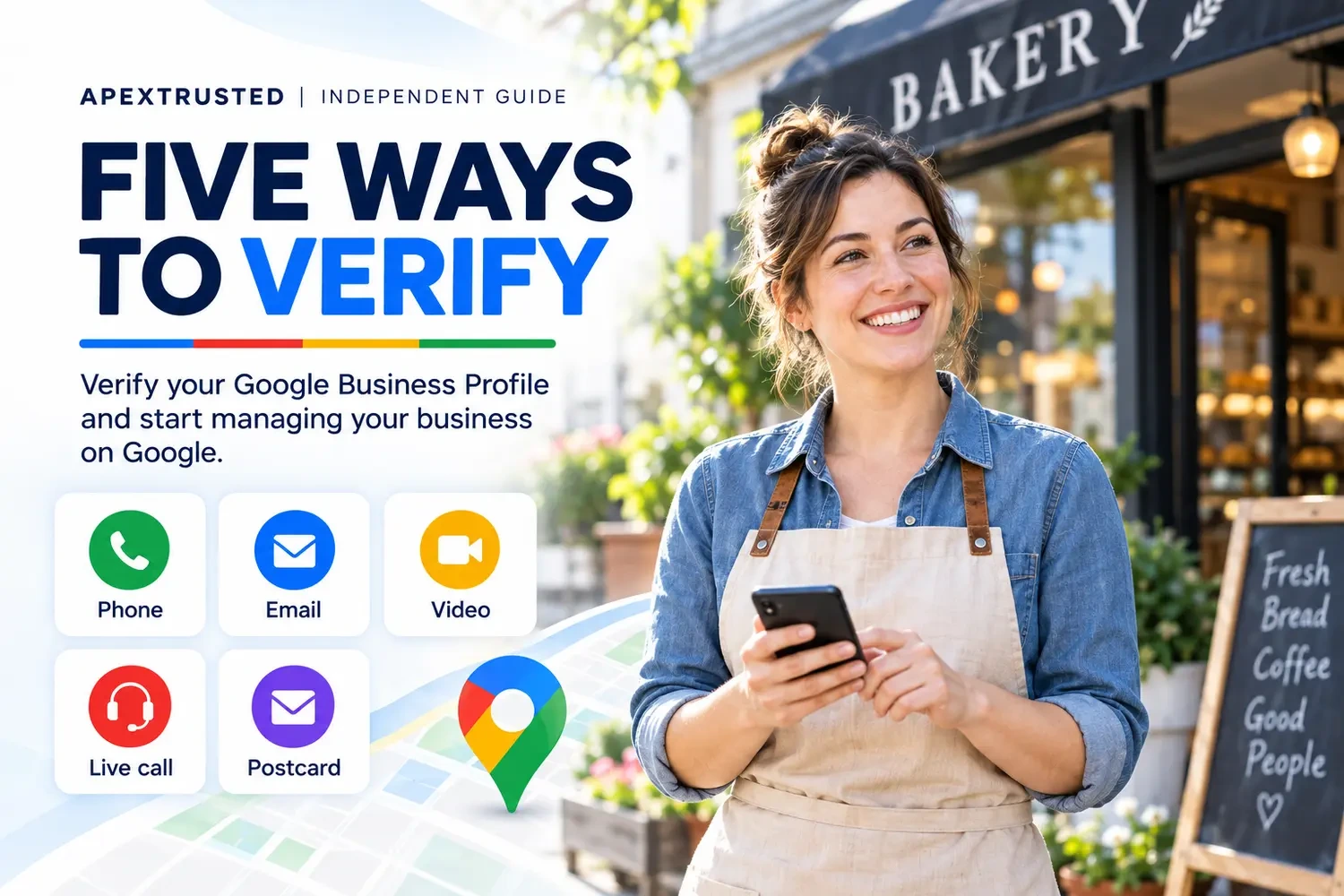
- 6Practical steps
- 5Possible verification methods
- Up to 5Business days for review, per Google
- 3Official Google help pages
Which method did Google offer you?
Open your profile and select Get verified to see your options, then choose the one you plan to use. The walkthrough below highlights the steps that apply.
- Make sure you can answer the business phone number or receive texts. Google says automated phone systems (IVR) won’t get the code.
- Answer the call or open the text, then enter the code on your profile.
- Use only an email address you can access that appears on the verification screen.
- Follow the steps in the email, then wait for Google’s review.
- Plan the video first: one unedited take of at least 30 seconds, recorded and uploaded from a mobile device.
- Show where the business is, that it exists and that you manage it. Google recommends video when you’re eligible for it.
- Be at the business, during its business hours, with a device that supports video calls.
- Be ready to show your location, your business or equipment, and proof that you manage it.
- Check the mailing address before you request the code. Google says most codes arrive within 14 days.
- Don’t edit the name, address or category and don’t request a new code while you wait.
Sources: Verify your business on Google ↗
Is this the right guide for you?
Use this guide if
- You own or manage the business and your profile shows “Get verified”.
- Google asked you for a video, a postcard code or another check.
Check another path if
- The business is not on Google yet: start with the setup guide.
- You are verifying a Google Ads advertiser account; that is a separate process.
What to expect
Verification is how you take ownership of the profile so you can edit details such as the name or hours and interact with customers. Google decides which methods you see, based on things such as business type, public information, region and hours, and the method can’t be changed.
Prepare before you start: a video check needs specific evidence in one continuous recording, a live call happens only during business hours, and editing key details or requesting a new postcard while you wait can make a code stop working. Google says review takes up to 5 business days.
- The Google Account that manages the profile
- Access to the location or your work tools and vehicle
- A private place for codes that no one else sees
The five verification methods, side by side
You will only see the methods Google offers your profile, and some businesses need more than one. Use this table to prepare for whichever appear.
| Method | How it works | Be ready to | Watch out for |
|---|---|---|---|
| Phone or text | Google sends a code by phone call or text message. | Answer the business phone number or receive texts on it. | Automated phone systems (IVR) won’t get the code. |
| You follow steps in an email from Google. | Use the email address shown on the verification screen. | You need access to that exact address. | |
| Video recording | You record and upload a live video from your mobile device. | Show location, business and management in one unedited take of 30 seconds or more. | Pre-recorded or edited videos, sensitive numbers and other people’s faces aren’t allowed. |
| Live video call | A support representative guides you through a video call. | Be at the business during its hours with a video-capable device. | It may not be available to every business. |
| Postcard | A 5-digit code is mailed to the business address. | Confirm the mailing address, then wait; most codes arrive within 14 days. | Editing key details or requesting a new code voids the code; codes expire after 30 days. |
Summarized from Google’s verification help pages. Verify your business on Google ↗ Verify your business with a video recording ↗
What a verification video has to show
Google’s requirements depend on whether customers come to you or you go to them. A storefront needs permanent on-site signage; without it, Google says to list the business as a service-area business.
| Evidence | Storefront or hybrid business | Service-area business |
|---|---|---|
| Where you are | Street signs, building numbers, nearby businesses or familiar places around the business. | Street signs, landmarks or other identifiers at the business address. From home, landmarks and signs in your immediate neighborhood. |
| That the business exists | The storefront or signage, with the profile’s exact name on a permanent fixture such as a sign, wall or window. | Professional tools, equipment or products, your workspace, business cards or branded clothing. |
| That you manage it | Things only staff can access: opening a register, the kitchen, a storage room or a point-of-sale system. | Performing a service or unlocking a branded vehicle; or a permit, invoice or utility bill in the profile’s name. |
| Keep out of the video | Bank, tax or ID numbers, private information and other people’s faces. | The same, and avoid filming empty land or places without clear markers. |
Based on Google’s video recording requirements. Verify your business with a video recording ↗
6 practical steps. One clear next action.
Read the key points here. Open the extra detail only when you need it.
- Step 01
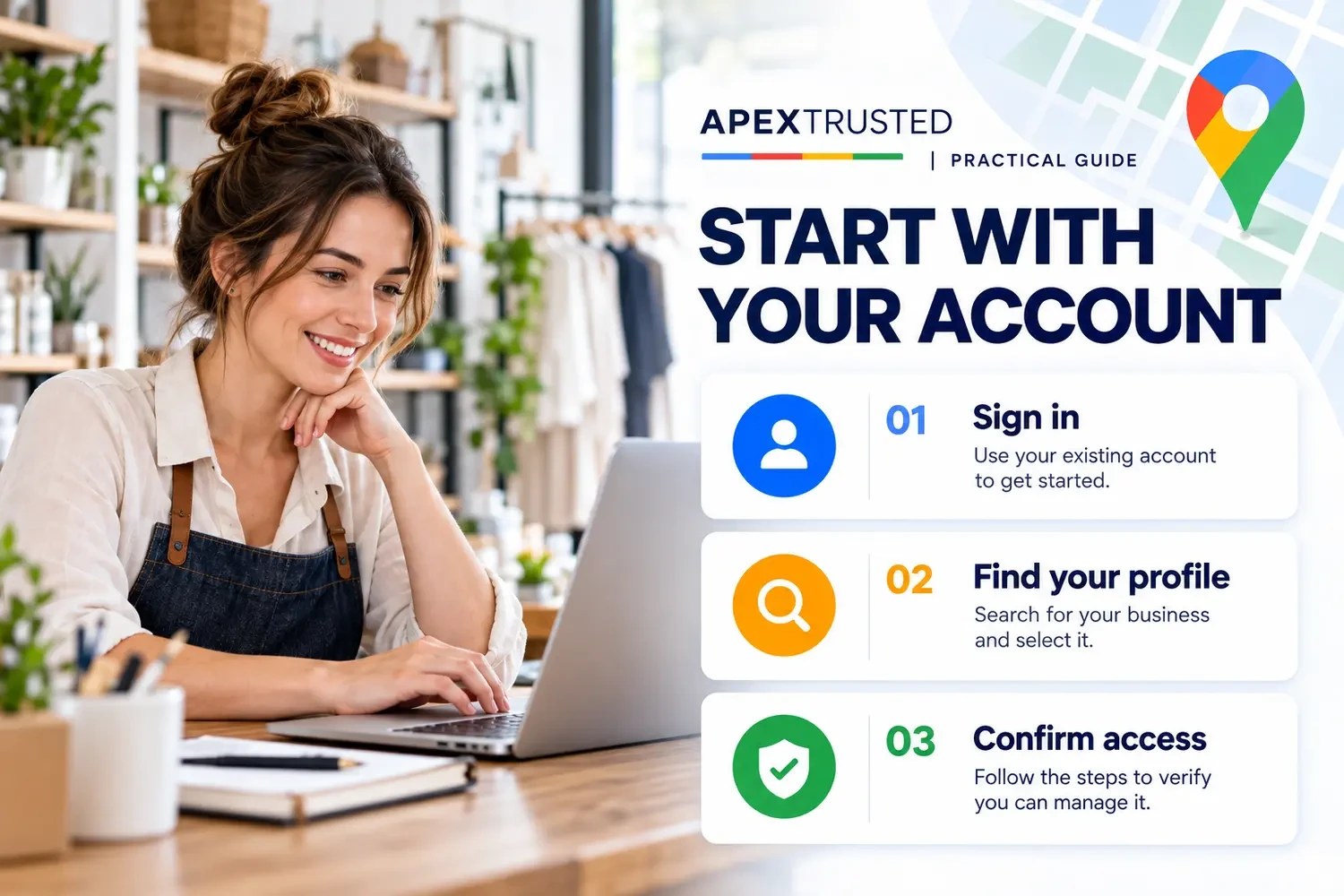
Sign in and find your profile
- Sign in with the Google Account associated with the profile; you can use a Gmail address or another email address you prefer.
- Search for the business name and city, or “my business”, to open the profile. If the business isn’t on Google or hasn’t been claimed, add or claim it first.
Verify your business on Google ↗Go deeper: How to Create and Set Up a Google Business ProfileDetails & things to check
Google says you need a Google Account to sign up for a Business Profile, and that linking a company email address can make the profile easier to manage. Use an account the business will keep controlling, so access doesn’t depend on a former employee or contractor. Owners and managers can be added after verification.
- Step 02
Use the methods Google offers you
- Select Get verified. Google determines the available methods from your business type, public information, region or business hours, and the method can’t be changed.
- Possible methods are phone or text, email, video recording, live video call and postcard. Some businesses need more than one; Google recommends video when you are eligible.
Verify your business on Google ↗Details & things to check
For a phone or text code, make sure you can answer the business phone number or receive texts; automated phone systems (IVR) won’t get the code. For email, you must be able to use the address shown on the verification screen. Seeing a different method from another business, even a similar one, is expected.
- Step 03
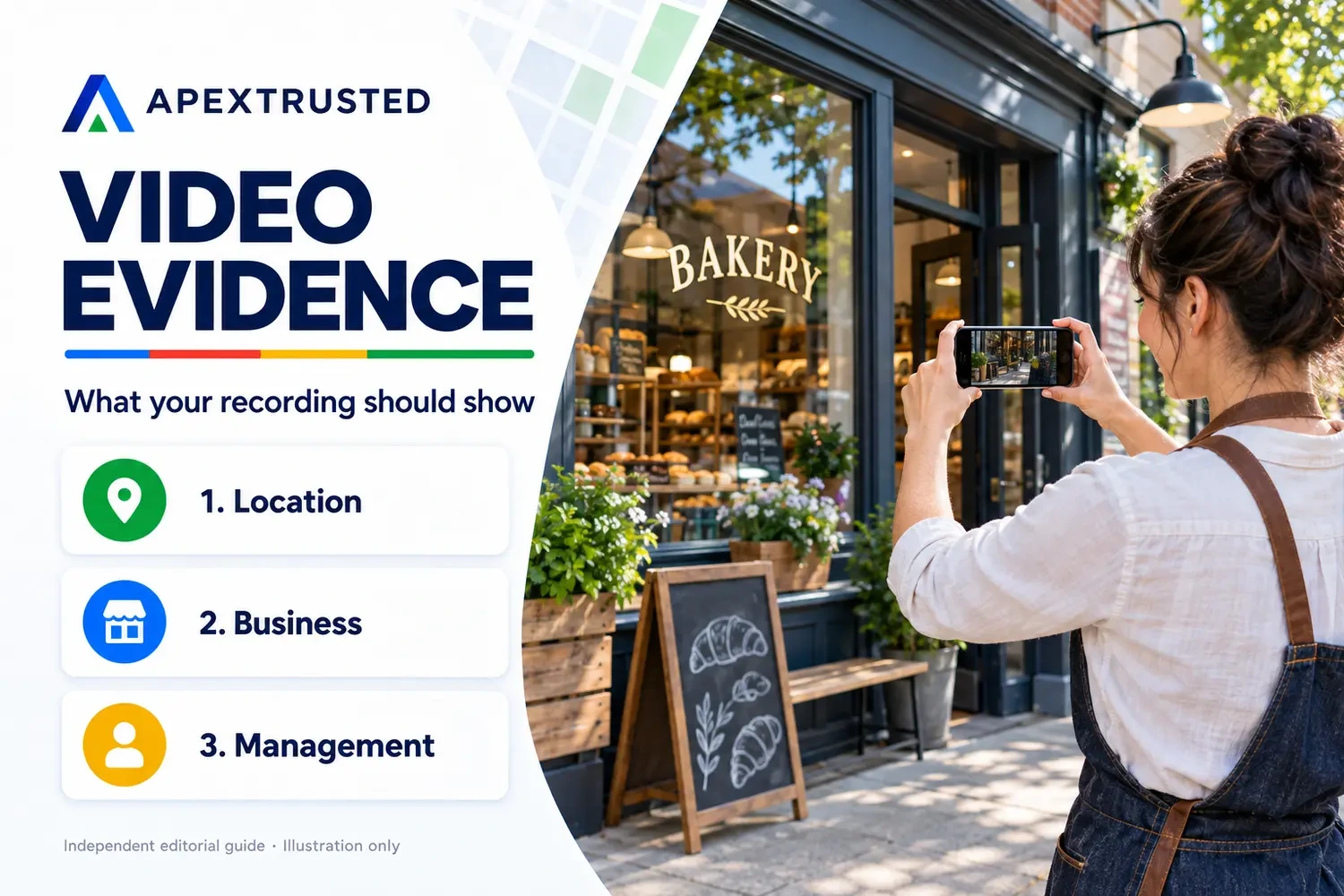
Record a verification video that passes
- Plan before you record. The video must be live, unedited and unbroken, at least 30 seconds long, and recorded and uploaded from a mobile device through your profile.
- Show where the business is, that it exists and that you manage it, following the requirements for your business type.
Verify your business with a video recording ↗Details & things to check
On your phone, open the profile, tap Get verified, then Business video, and allow access to location, camera and microphone if asked. Review the recording before you upload it, and tap Try again to re-record if something is missing. You can delete the video later from your profile settings; otherwise Google deletes it.
- Step 04
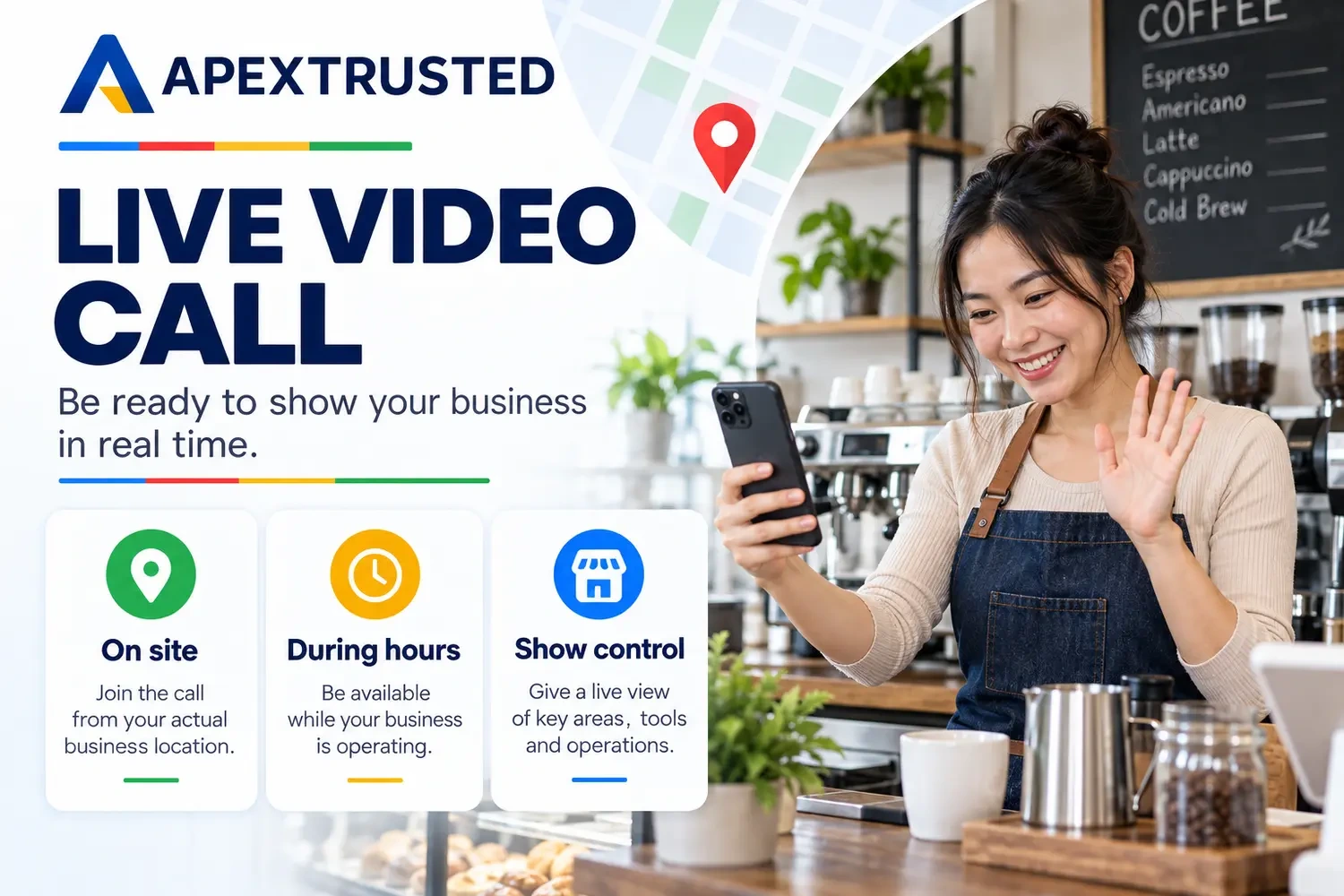
Prepare for a live video call
- Live calls are available only within your location’s business hours and may not be offered to every business.
- Be at the business with a device that supports video calls, ready to show your location, your products or equipment, and proof that you manage the business.
Verify your business on Google ↗Details & things to check
Start from Get verified, choose Live video call and your language; a text chat with a support representative comes first, and they then help you join the video call. Proof of management can include employee-only areas, a register, the kitchen, a storage room, non-sensitive business documents or using your keys to open the premises.
- Step 05
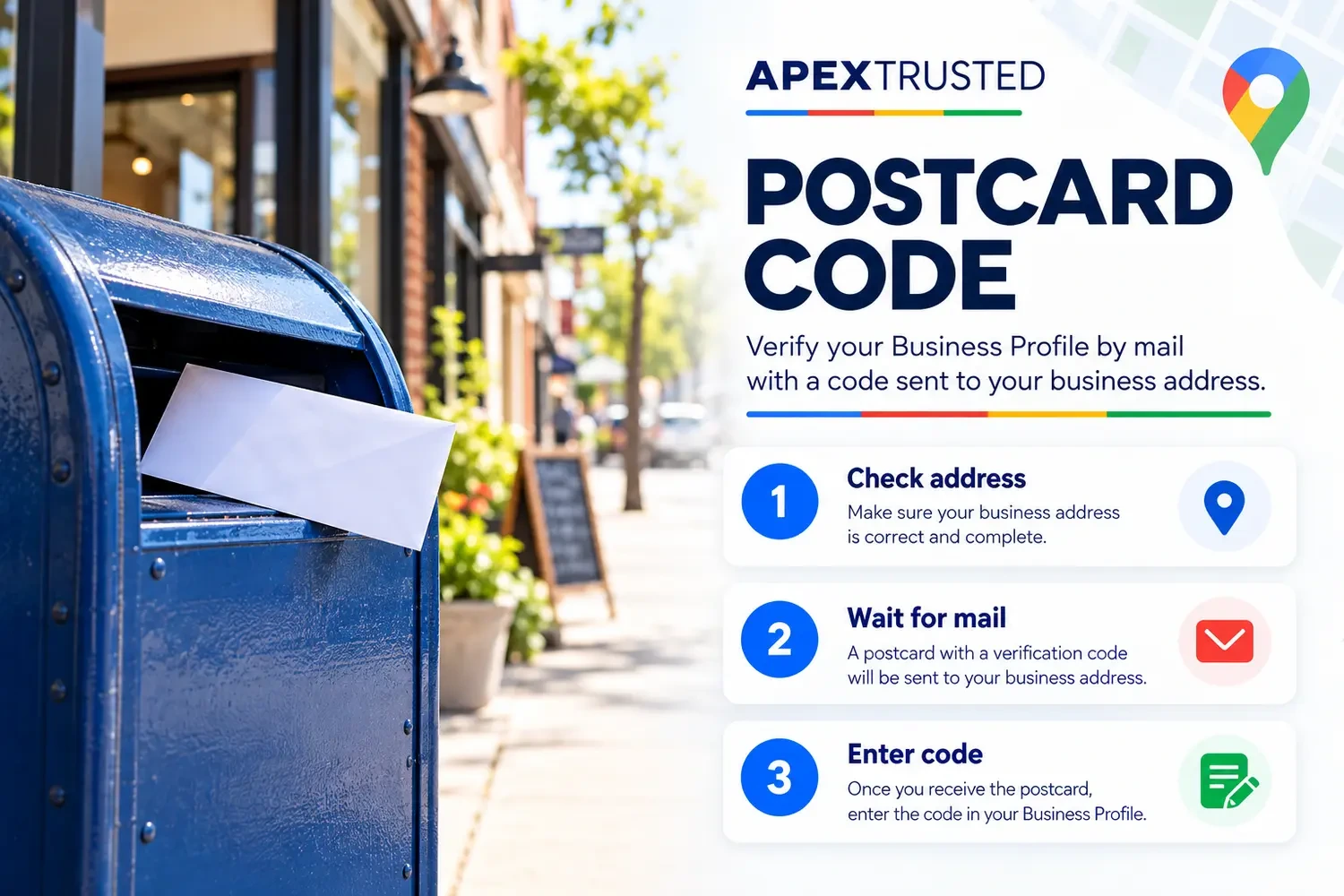
If you choose a postcard
- Check that the mailing address is correct, then request the code. Google says most codes arrive within 14 days and expire after 30 days.
- While you wait, don’t edit the business name, address or category, and don’t request a new code: that invalidates the one already in the mail.
Verify your business on Google ↗Details & things to check
When the postcard arrives, open your profile, enter the 5-digit code in the Code field and select Submit. Keep the code secure: Google says it will never ask for your verification code, and you shouldn’t share it with anyone, even people who manage your profile.
- Step 06
Wait for review, then confirm
- Google reviews what you provided. It says reviews take up to 5 business days, and on rare occasions longer.
- When the business is verified, you get a confirmation email. You can then add other owners or managers to the profile.
Verify your business on Google ↗Details & things to check
Verification can be instant in some cases, such as when your website is already verified in Google Search Console or when you use bulk verification. Changes to business information can trigger re-verification later; follow the same steps shown on your profile.
What each message means, and what to do
A failed attempt doesn’t mean the business can never be verified. Read the signal on your profile and respond to that.
| What you see | What it means | What to do |
|---|---|---|
| “Get verified” appears again | Google couldn’t completely verify the business. | Re-verify. If several methods are shown, you can try another one. |
| “Review issues” on a video | Your video wasn’t accepted, for example the name wasn’t visible or no nearby area was shown. | Open Review issues, then record a new video with everything from the first one plus what was missing. |
| A request for more information | Business details were probably updated recently. | Select Get verified and re-verify with the method shown. |
| A video that won’t upload | Uploads sometimes fail on the first try. | Upload it again. |
| Still stuck | The available methods haven’t worked. | Try every method offered first, then contact Google support or ask in the help community. |
Compiled from Google’s verification troubleshooting guidance. Verify your business on Google ↗ Verify your business with a video recording ↗
What to avoid
Common mistakes
- Sharing a verification code with anyone, including someone who helps manage the profile. Google says it will never ask you for the code.
- Requesting a new postcard while one is on its way, or editing the name, address or category before the code arrives.
- Submitting an edited or spliced video, or one that shows bank, tax or ID numbers or other people’s faces.
- Expecting a call to an automated phone menu (IVR) to receive the code.
Before you continue
Can I choose a different verification method?+
No. Google determines the methods available to your profile and says the method can’t be changed. If Get verified appears again after an attempt, you can re-verify or try another method that is offered.
How long does verification take?+
Google says review takes up to 5 business days, and on rare occasions longer. Postcards: most codes arrive within 14 days and expire after 30 days.
My postcard hasn’t arrived. Should I request another?+
Google advises against it: requesting a new code invalidates the one already in the mail and can make the process longer. Most codes arrive within 14 days.
My business has no permanent sign. Can I still verify by video?+
Google says a business without permanent on-site signage should be listed as a service-area business, and its video then focuses on the address area, your tools or equipment and proof that you run the business.
I run a service business from home. What do I film?+
Google says you can record landmarks and signs in your immediate neighborhood to show the address, plus your tools, equipment or branded vehicle, and documents such as a permit or invoice in the profile’s name.
Can an agency or manager verify the profile for me?+
Verify with the account that will own the profile, and keep the code to yourself. Google says not to share codes, even with people who manage your profile; third parties can be added as managers after verification.
Why am I asked to verify again?+
Google says changes to business information may require re-verification. Select Get verified and follow the steps shown on your profile.
Does verification guarantee a higher position on Google Maps?+
No. Google says verification makes a business more likely to show up in search results, but local results also depend on relevance, distance and prominence, and a better local ranking can’t be bought.
Go straight to the source.
We read Google’s verification and video verification help pages in full on October 29, 2026 and summarized only what they state. We did not verify a business or access any Business Profile, so screens, method availability and timing for your business can differ.
Image credits: AI-generated editorial illustration by ApexTrusted; AI-generated editorial illustration by ApexTrusted; AI-generated editorial illustration by ApexTrusted; AI-generated editorial illustration by ApexTrusted; AI-generated editorial illustration by ApexTrusted. Illustrations are not Google interface screenshots or real verification evidence.
Corrections and scope
For changes in Google’s instructions, follow the live official source. To flag an error, send this article’s URL and the relevant source through our editorial contact page. Do not send passwords, verification codes or identity documents. This is educational content, not Google support.
More Business Profile guides
How to Create and Set Up a Google Business Profile
Check eligibility, find an existing listing and follow the right setup path—without creating avoidable duplicates.

Get Your Google Business Profile Details Right
What Google allows in the business name, categories, address or service area, hours, phone number and website—and what gets a profile into trouble.
What to Do When Someone Else Owns Your Business Profile
How to request access to a verified profile someone else controls, what the three-day window means and your options if the request is denied or ignored.